jQuery mobile experiences

Mobile optimized website projects seem to becoming increasingly common so I thought I would summarize some of the advantages & disadvantages we have experienced with using the JQM framework (jQuery mobile http://jquerymobile.com/).

But why would you use such a framework in the first place?

Well you certainly don’t have to (and in many cases probably shouldn’t) but JQM:

  • Tries to take care of various niggly display issues across multiple types of devices
  • Provides an abstraction over various events e.g. rotating a device, swipes etc
  • Takes care of history management
  • Gives you various controls similar to what exists in an iphone (because in my experience most clients seem to think a mobile site should look like an iphone app – websites are different from apps grrr – anyway moving on..)

Good things:

  • Our app on the whole displays pretty well across multiple device types with little effort e.g. iphone, ipad, various android devices & win phone 7
  • Was very quick to get up and running with JQM
  • Our brief was to copy existing iphone app and we were able to do so pretty easily
  • JQM has good documentation and examples

However we also encountered a number of issues with the framework.

Bad things:

  • JQM mobile leaves other pages in the dom (even multiple copies of the same page) which means you need to be careful with giving all selectors a context. There doesn’t seem to be a way to disable this apart from turning the ajax loading off which removes one of JQM’s biggest benefits of hijax loading
  • JQM interferes with the event model and a couple of “standard” jquery type methods such as event.preventDefault don’t work properly
  • At times JQM feels sluggish (apparently this is due to delays in place to handle taps for various device types)
  • JQM interferes with markup and adds its own styling & elements. Most of the time this is fine but we had a couple of pages that crashed ipod touch devices and iphones. This seemed to be related to number of dom elements on page
  • JQM seems to queue touch events so if you rapidly click the clicks seem to be queued up when you return to a particular page
  • Its v1 so there are a number of bugs in it

I am not sure if I would use JQM again because of some of these issues – towards the end of the project I felt we were fighting the framework. Much of the functionality e.g. transitions wouldn’t be too tricky to develop yourself. It is however excellent for small projects particularly if most of your pages are static content.

Image Optimizer extension for VS2010

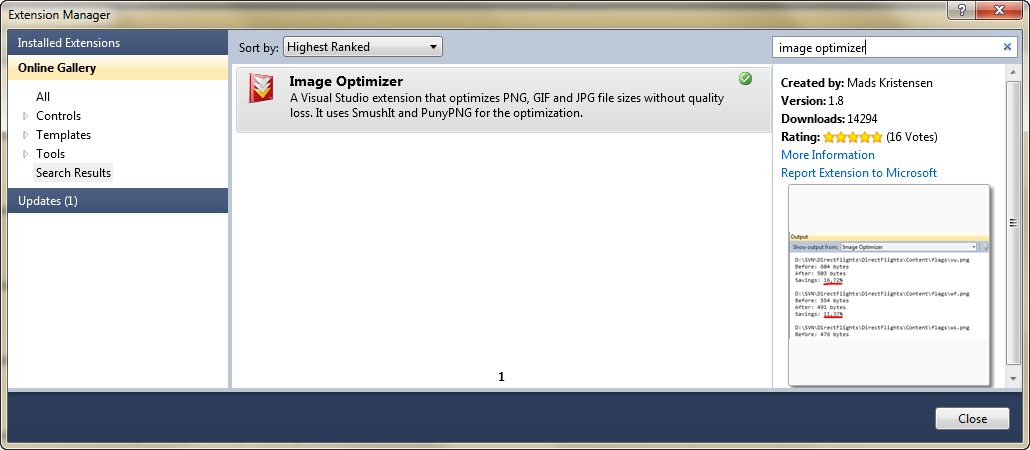
I came across a nice free extension for Visual Studio 2010 for quickly optimizing images within Visual Studio IDE. Image optimizer uses external services such as smushit and PunyPNG to reduce the file size of your images with no visible loss of quality. As this results in less downloads for your users it’s a bit of a no brainer to implement.

To install the extension open Visual Studio and go to Tools, Extension Manager, Online Gallery and search for Image Optimizer and then click Install.

Once the extension is installed you can right click on a folder and select Optimize Images to have all the images in the folder optimize (check the files are not read only/checked out otherwise you will get an exception when the add on attempts optimization.

Once Image Optimizer has finished optimizing the images it will give you a summary of how much it has reduced file size by. Below shows the output from a recent project:

14 skipped. 142 optimized. Total savings 57.27%

IE9 hardware acceleration

In addition to some dubious implementation of standards one of the main criticisms of Internet Explorer was that it lagged behind other browsers in many speed tests.

But no longer! Microsoft has invested a large amount of time in making the latest release of IE run as fast as they can.

As a consultancy we (Readify– shameless plug!) are often called in to assist with investigating and fixing poorly performing applications. A sensible approach for a performance engagement is to establish a performance base line so any improvements can be measured and then if possible break the problem down into smaller components.

The Microsoft team took a similar approach to find out where bottle necks in Internet Explorer were by analysing data from a number of (unrevealed) real world sites. Web browsers are complex beasts made up of several smaller components all of which can be tweaked.   Jason Weber (Lead Program Manager, Internet Explorer perf team) suggests that browsers generally consist of the following components:

  • Network (client/server communication)
  • Html Parsing
  • CSS Parsing
  • Collections (an odd choice for meta data processing)
  • JavaScript engine (what is says on the tin!)
  • Marshalling (browser & script engine communication)
  • Native OM (script engine & browser communication)
  • Formatting (applying of styles to document)
  • Block building (construction of blocks of text)
  • Layout (composition of page)
  • Display (displaying content to users)

The team found that the split of work changed quite dramatically between static  sites (Figure 1.1) and sites that made heavy use of ajax requests (Figure 1.2). Note I have taken these graphs from  http://blogs.msdn.com/b/ie/archive/2010/08/30/performance-profiling-how-different-web-sites-use-browser-subsystems.aspx).

Figure 1.1 – Amount of time IE 8 spends on each browser sub system on news sites.

Figure 1.2 – Amount of time IE 8 spends on each browser sub system on ajax sites.

As you can see from Figure 1.1 about a third of a time loading an ajax heavy page is spent on rendering subsystems – making this subsystem an obvious target for optimization.

So what could be done to improve this?

One change the team felt could give a big improvement was to work directly with windows display api’s at as low a level as possible and remove any unnecessary areas of abstraction. By removing unnecessary calls rendering and composition would be more efficient.

Previous versions of Internet Explorer utilized the GDI+ libraries. Internet Explorer 9 (only available on Windows Vista and Windows 7) utilizes the Direct X libraries. It is important to note that the GDI+ libraries did perform hardware acceleration to some degree but the DirectX libraries make much greater use of GPU devices.

Direct X is the name for a collection of APIs mainly concerned with multimedia & in particular graphics. You have probably come across these libraries if you have installed a game in the last 10 years or so!

Internet Explorer 9 utilizes two DirectX libraries; Direct 2D (concerned with images and shapes) and Direct Write (text) . It is important to note that both of these are built on top of Direct3D libraries. DirectX is optimized to use the GPU if available.

Microsoft divides page rendering into 3 stages all of which can benefit from hardware acceleration – different libraries are used at different stages:

  • Content Rendering (Direct 2d & Direct write)
  • Page composition (Direct 3d)
  • Desktop composition (Desktop Window Manager – part of Windows Vista/7)

In Internet Explorer 9 all of these stages can be hardware accelerated. This means that graphical calculations are performed quicker and more efficiently on the GPU. The offloading of work to the GPU also frees up resources that would normally be occupied for rendering to do other tasks.

In addition to performance benefits the DirectX libraries render text, images and animation smoother due to better handling of sub-pixels and per-primitive antialiasing (please refer to http://msdn.microsoft.com/en-us/library/dd370987(v=vs.85).aspx for more information).

But what will be accelerated?  Well it depends – it could be none, some or everything!

As a rough guide IE9 will use hardware acceleration for the following items:

  • Text
  • Vector graphics
  • Images
  • Backgrounds
  • Borders
  • Video
  • Flash (from version 10.2)

Internet Explorer 9 gives you the option to turn off hardware rendering. This option is available by going to Internet Options/Advanced and checking the Use Software Instead of GPU rendering option. This could be useful if you are experiencing rendering issues with an unsupported GPU or for  experimentation. Note if by sheer bad luck you are using a machine with unsupported device this option will be greyed out (time for a new machine!).

Microsoft initially claimed that they were the only browser to have a fully hardware accelerated pipeline. This wasn’t strictly true however as recent versions of Firefox also support this (via an abstraction they refer to as “layers” between the browser and DirectX libraries). Recent versions of Chrome also support hardware acceleration to some degree.

Dean Hachamovitch, Corporate Vice President, Internet Explorer at Microsoft stated:

“Native implementations are just better for developers, consumers, and businesses. They keep Web sites from falling behind applications in performance and other important ways. While using cross-platform, non-native compatibility layers makes browser development easier, they don’t necessarily make a better browser.” http://blogs.msdn.com/b/ie/archive/2011/04/12/native-html5-first-ie10-platform-preview-available-for-download.aspx

Robert O’Callaha from Mozilla however argues “but an extra abstraction layer need not hurt performance — if you do it right” http://weblogs.mozillazine.org/roc/archives/2010/09/

So who is right?

Well in order to look at this lets conduct a completely unscientific couple of tests on my XPS 16 laptop (ATI mobility Radeon HD4670 GPU).

I am going to use the Fish tank demo from the IE site for this (http://ie.microsoft.com/testdrive/performance/fishietank/) with 500 fish & examine the frames per second rate. This demo utilizes Canvas and Javascript to display a number of fish swimming about an aquarium and gives a rate that in can render each frame. Its difficult to test just the graphical subsystems and this “benchmark” makes heavy use of Javascript.

Below are the results from my tests:

  • IE9 hardware – 60FPS
  • IE9 Software – 5FPS
  • IE 10 preview – 4FPS
  • Chrome  11.0.696.65 – 5FPS
  • Chrome 11.0.696.65 hardware acceleration enabled * 7fps
  • Firefox 4 – 4fps
  • Safari 5.05 – crashed
  • Opera 11.10- 5fps

*Chrome has this off by default as experimental but can be enabled with about:flags option

As you can see Internet Explorer performs very well in these tests. It is also interesting to note the big differences between hardware and software acceleration performance.

Its important to note that this test was developed by Microsoft and optimized for tasks they know the browser is very good at. A number of Firefox developers commented that you would be better using WebGL for this task which isn’t yet supported by IE.

To wrap up hardware acceleration is being implemented in all major browsers. At first glance you may question how important this feature is given the vast majority of the web and its related services are text based. However as we have seen rendering subsystems play a major part in a pages load time and various demos we have seen lately show just what is achievable with the next generation of web technologies such as SVG, CSS3 and various Html 5 features.

Further reading

http://blogs.msdn.com/b/ie/archive/2010/09/10/the-architecture-of-full-hardware-acceleration-of-all-web-page-content.aspx
http://blogs.msdn.com/b/ie/archive/2010/08/30/performance-profiling-how-different-web-sites-use-browser-subsystems.aspx
http://channel9.msdn.com/Blogs/Charles/IE-9-Surfing-on-the-GPU-with-D2D
http://blogs.msdn.com/b/directx/archive/2009/09/29/comparing-direct2d-and-gdi.aspx
http://blogs.msdn.com/b/ie/archive/2011/04/01/getting-the-most-from-ie9-and-your-gpu.aspx
http://msdn.microsoft.com/en-us/library/dd370987(v=vs.85).aspx
http://en.wikipedia.org/wiki/Internet_Explorer_9
http://weblogs.mozillazine.org/roc/archives/2010/09/
Change of MVP focus to Internet Explorer

I was originally awarded MVP C# for the last 2 years due (I suspect) to my books coverage of the CLR and Language changes. I never felt completly comfortable with the C# focus as don’t consider myself a language expert and the web has always been my primary area of interest. I was thus pleased to change my MVP award focus to Internet Explorer (although I suspect Internet Explorer focus is less prestigious than C#!).

I spent some of this week at the MVP summit meeting the Internet Explorer team. It was great to speak to the team directly and understand some of the decisions they have made and a deep dive into various perf enhancements. I look forward to working with them and hopefully having an input into Internet Explorer.

The team have launched a great comp to see what you can do with HTML5 at http://www.beautyoftheweb.com/#/unplugged

IE 9 and measuring web page performance using window.performance

When optimizing web pages it is useful to measure how long various functions and events take to occur on a page so you can be sure you are appended pictures of your Cat to the DOM as quick as possible.

However it’s actually quite difficult to measure the time various functions and events take to run. Most current methods of measuring time involve getting the current time at various points on a page and then performing simple date arithmetic. However even measuring this way can of course skew the test results (although it should be fairly consistent). Additionally John Resig wrote an interesting post after he discovered some browsers only update their system times around every 15ms (http://ejohn.org/blog/accuracy-of-javascript-time/) so using this method means that you are not going to see micro changes anyway.

The W3c has proposed a standard API for measuring performance (you can read it here: http://dvcs.w3.org/hg/webperf/raw-file/tip/specs/NavigationTiming/Overview.html). This isnt actually finished yet so expect there to be a few changes.

We can play with this new api in IE9 (Chrome and the latest stable of Firefox dont seem to support this yet).

To use the new API we retrieve the  window.performance.timing object (note some tutorials such as http://blogs.msdn.com/b/ie/archive/2010/06/28/measuring-web-page-performance.aspx still refer to this as windows.msPerformance but a quick walk of the window object will show we know better..).

The below example shows the syntax:

var timingObj = window.performance.timing;
var navStartTime = new Date(timingObj.navigationStart);

Currently the documentation around some of these properties is a little scarce and its a bit confusing as to what each are actually measuring so I will follow this up as I discover more.

Azure deployment – remain in running state

I spent a frustrating week dealing with Azure deployment.

One of the most irritating things for me about Azure is that sometimes you can screw up an Azure package but this wont be revealed until you try and deploy it as it will remain in the starting state. As the time a role can take to start up varies this is doubly annoying as you dont know whether it has failed yet!

But wait – surely Azure would give you a bit of information regarding why it cannot start up your role?

Well no although this potentially changes with Azure Tools 1.3. Version 1.3 of the tools allow you to remote desktop into the role and may or may not offer additional information..

So what kind of things can cause a role to remain in this state and consider sacrificing small animals to the azure gods?

From my experience:

1) Not including required assemblies- make sure all necessary assemblies are set to copy local. Azure is not your machine and may not know about your assemblies
2) Corrupt configuration
3) Storage wrongly configured e.g. leaving your role pointing at devstorage4) Wrongly configured or missing certificates
4) The moon moving into Venus’s orbit..

When you package Azure roles by default they are encrypted (devfabric packages are not) which can make it tricky to spot missing assemblies etc. You can disable this by creating a new system environmental variable called _CSPACK_FORCE_NOENCRYPT_ and setting it to true (see http://blogs.msdn.com/b/jnak/archive/2009/04/16/digging-in-to-the-windows-azure-service-package.aspx). You can then change the .cspkg extension to zip and browse the contents of it. Note the team say this technique is unsupported so may stop working in a future version of the tools.

Good luck!

History API in HTML5

A common issue when loading content through ajax techniques is that a browsers backwards and forwards buttons sometimes wont respond how the user expects. For example if you change a pages content in response to the click of a button and the user then clicks back expecting to return to previous content then its unlikely the application will function as expected.

Html5 introduces a history api allowing you to easily manipulate the browsers history and also hold state on each entry. This is pretty well supported already across modern browsers so is worth looking into now.

Below are some examples of how to use this:

history.pushState(stateObj, “page 1”, “IWasNeverReallyLoaded.html”);
history.replaceState(stateObj, “page 1”, “page5.html”);

Introducing WebAdvisor – the web quality tool!

I have started work on an application that I am tentatively calling WebAdvisor. The idea of this application is that it will analyze HTML for bad practices based on simple string matching rules and then direct the user to documentation showing a better way of doing stuff.

For example it might pick up stuff like:

<div onclick=”javascript:alert(‘Couldnt you add me a better way?’)”></div>

This came out of research I am currently writing for a presentation on Javascript best (and worst) practices.

Javascript has an application called JSlint that will analyze javascript for issues. At first I considered how to test Javascript without a browser (and there are a couple of .net js processors to do this) but then decided that simple string matching and manipulation could catch many issues.

I plan to create several different types of test e.g. html – (heh do we need to check for use of blink or marquee!), javascript, security etc all as plugable MEF modules.

Originally I was thinking this process could be integrated into a build. However most web applications are composed of many components so I think this is going to have to analyze the html (at least initially).

Anyway have done an initial check in of project – not too much there at the moment but let me know if you think this is a good/bad idea.


IE9, Video and HTML5

There is an interesting post (mainly concentrating on various patent issues) on the IE blog that IE will support the H.264 video standard (note that IE9 will also support Google’s WebM format that was looking the best bet until recently through an additional install).

This got me thinking about HTML5 and Video – is this something you should use now?

Hmm well lets start at the beginning.. Html5 contains a Video tag (there is also an Audio one thats very similar) giving you the ability to embed video on a web page.

The below code shows an example of how to do this:

<video id=”Video”   height=”500″ width=”500″>
<source src=”billyBrowsers.ogg” type=’video/ogg; codecs=”theora, vorbis”‘>
</video>

Pretty easy huh? There are also a number of other attributes you can add to the Video element such as loop (guess what this does!), controls (left up to the browser to render playback controls).

This has a number of advantages:

  • No plug-in required! (although codec’s are necessary – see IE blog link above)
  • Can be indexed by search engines
  • Video is a DOM element so can be manipulated – Mozilla have a cool example of this.

However not all browsers support HTML 5 yet so whats a dev to do?

Hmm well hopefully you are designing your application using the philosophy of progressive enhancement and one way to outsource the complexity of this is to use a third party player such as SublimeVideo or Open Standard Media player that will attempt to use HTML 5 to play content and fall-back to Flash if necessary.